- Serial Wire Output is used to execute the output of “printf” and print the output log in the terminal
- This feature will works on or above ARM Cortex M3/M4/M7
- All the Debug things will be handled via ST Line V2 Debug available in the evaluation board
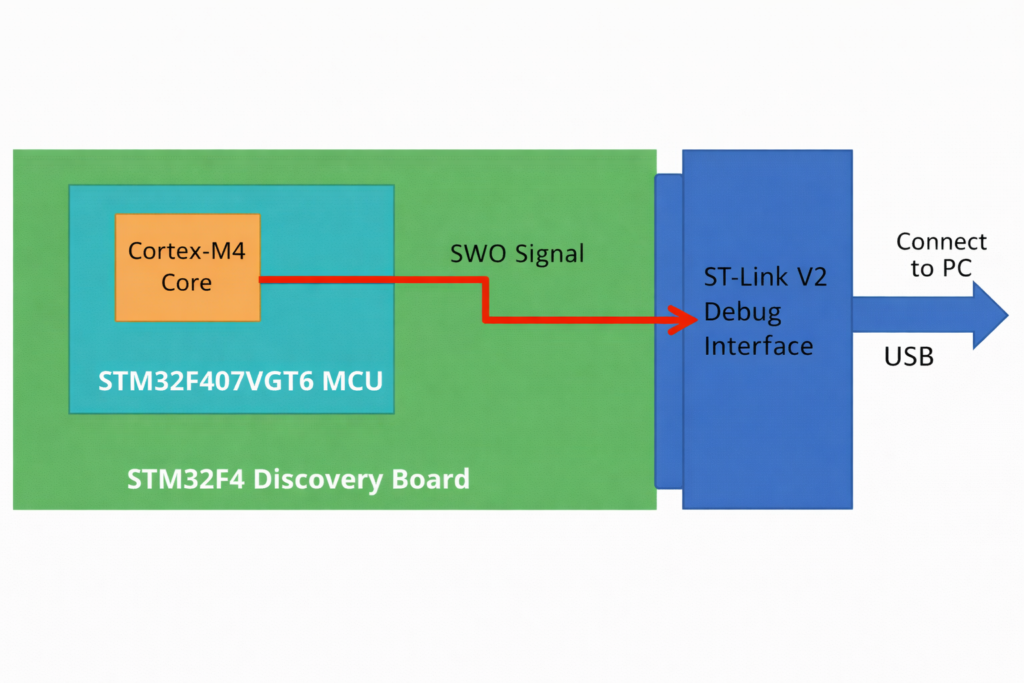
ITM Unit (Instrumentation Trace Macrocell unit)
- ITM unit is used to debug and print output logs in the terminal
- Also reading the memory, register, run, stop, halt execute those feature will be executed with help of ITM Unit
- ITM unit has two features
- SWD (Serial Wire Debug)
- 2 Pin debug + 1Pin (Trace)
- SWD is a Two wire protocol used for debugging session – to access debug interface to ARM
- Trace pin is used to Print the log
- SWD
- The physical layer of SWD Contains two lines SWDIO and SWCLK – Serial Wire Data input output and Serial Wire Clock
- using SWD Interface – SWD interface can be able to program MCU internal flash, memory regions, add breakpoints, stop/run CPU
- This SWD will also be used for the printf statements for debugging using trace
- SWD and JTAG
- JTAG needs more pins compared to SWD and JTAG is available for ARM7/9 Family
- SWD is used to reduce the pin count required for debug from the 4 used by JTAG (excluding Ground) down to 2.
- SWD Interface provides one more pin called SWO (Serial Wire Output) which is used for Single Wire Viewing (SWV) which is a low cost tracing technology.
- To enable this SWO – Additional some code changes required Lets do it with hello world project
Hello world Project with SWO and SWV Example
- Once stm32 new project is created – create with Empty project (stm32cubeIDE version1.19.0)
- Right Click on the project -> Properties -> C/C++ Build –> Setting –> Tool Settings —> MCU/MPU Setting -> select none in Floating-point unit —> select software implementation in Floating-point ABI -> Select Apply -> Apply and close
- Now FPU warning will be resolved, if need to used FPU init later
- Debug Configuration
- Right Click on the project -> Debug As -> STM32 Application -> Edit Configuration window will be opened
- Here go to Debugger section -> select debug probe which is used currently using Default ST-Link
- Keep Everything default -> Enable Serial Wire Viewer
- Sometimes, upgrade option for ST-Link can be asked kindly upgrade and continue
- itm_send_data functions needs to added in syscalls.c
/////////////////////////////////////////////////////////////////////////////////////////////////////////
//					Implementation of printf like feature using ARM Cortex M3/M4/ ITM functionality
//					This function will not work for ARM Cortex M0/M0+
//					If you are using Cortex M0, then you can use semihosting feature of openOCD
/////////////////////////////////////////////////////////////////////////////////////////////////////////


//Debug Exception and Monitor Control Register base address
#define DEMCR        			*((volatile uint32_t*) 0xE000EDFCU )

/* ITM register addresses */
#define ITM_STIMULUS_PORT0   	*((volatile uint32_t*) 0xE0000000 )
#define ITM_TRACE_EN          	*((volatile uint32_t*) 0xE0000E00 )

void ITM_SendChar(uint8_t ch)
{

	//Enable TRCENA
	DEMCR |= ( 1 << 24);

	//enable stimulus port 0
	ITM_TRACE_EN |= ( 1 << 0);

	// read FIFO status in bit [0]:
	while(!(ITM_STIMULUS_PORT0 & 1));

	//Write to ITM stimulus port0
	ITM_STIMULUS_PORT0 = ch;
}
add the above code snippet into syscalls.c
configuration:
- Enable SWV in Debug Configuration
- Add printf statements in the main.c
- Go to debug mode
- Select Window -> Show view -> SWV -> once console is opened select configure (icon is driver and spaner) -> select ITM stimulus ports 0 and apply
- everytime -> start button in the SWV ITM Data console and run the program to see output